


















 Home
Home About us
 Services
 Careers
 Insight


%20(48).png)
I was juggling multiple projects at once, using Python to glue APIs together, and keep things running. There was no frontend support, timelines were tight, and every new requirement meant learning something unfamiliar and fast.
Building a full web application, backend, UI, and even integrating Azure AI Foundry models for multi-model chat, was not about being an expert. It was about shipping something that worked, with limited time and limited resources.
As an AI engineer with limited experience and resources, I turned to GitHub Copilot to survive that pace. Not just to write code faster, but to learn new languages, navigate unfamiliar frameworks, and debug continuously until things actually worked. Copilot became a learning partner as much as a development tool. Why GitHub Copilot?
Why GitHub Copilot?
Building a full web application from scratch felt overwhelming. I was not just writing backend logic; I had to think about frontend structure, unfamiliar frameworks, and how everything fit together end to end.
There are many AI coding tools available today, ChatGPT, Cursor, Codeium, and etc. All of them are powerful in their own way. I chose GitHub Copilot for a simple reason. It works inside my editor, directly in the flow of coding. Instead of switching contexts, copying prompts, or stitching answers together, Copilot reacts to the code I am writing, understands the surrounding files, and suggests what comes next in real time.
I did not come from a traditional frontend or full-stack engineering path. Most of my experience was in low-code and no-code tools, automation workflows, and building AI agents. I needed something that could guide me while I was coding, not just answer questions, but help me learn by doing.
There was also a practical consideration. GitHub Copilot fits naturally into the Microsoft and GitHub ecosystem we already use as an organization, making it easier to adopt at an enterprise level without introducing new tools or governance complexity. That lowered the barrier not just for me, but for teams experimenting with AI-assisted development.
To be honest, my expectations were quite low. I assumed Copilot would only help with boilerplate code and that I would still struggle with everything else.
However, I was wrong.
Setting Up the Project
To get started, I opened Visual Studio Code and installed GitHub Copilot. After signing in with my Microsoft work account that has a GitHub Copilot license, Copilot was ready to use within minutes.
.png?width=800&height=424&name=image%20(47).png)
Inside VS Code, I selected Agent mode instead of Ask or Edit, as Agent can directly take action based on your prompts. I then selected my preferred model, which is Claude Sonnet.
%20(49).png?width=800&height=450&name=Events%20Thumbnail%20(1920%20x%201080%20px)%20(49).png)
From there, my workflow was simple: describe what I wanted in plain language and let Copilot generate or modify the code for me.
.png?width=228&height=501&name=image%20(50).png)
From setting up the project structure and building UI components to implementing backend logic, GitHub Copilot began filling in the gaps based on my intentions and the instructions I provided through prompts.
Prompting GitHub Copilot Effectively
The webapp was a multi-model chat interface powered by Azure AI Foundry, allowing users to select and interact with different AI models from a single interface.
My tech stack was intentionally simple:
- Frontend: Generated using another AI platform with Next.js and Tailwind CSS
- Backend: Python FastAPI
- Integration: Azure AI Foundry, Azure OpenAI, Azure Cosmos DB, Azure Storage Account, and Azure App Services
How did I prompt GitHub Copilot?
Prompt quality mattered a lot.
Instead of writing something vague like “Create a webapp for me”, I used descriptive prompts such as:
“I would like to create a webapp that integrates multiple AI models in one website. Users can select that model from a dropdown menu. The UI should look like ChatGPT, but with my company's main colour (HEX code). The backend will connect to Azure AI Foundry endpoints. Let’s do it step by step, then we can modify and add more features to it.”
With prompts like this, they don't need to be technically precise, just clear about the goal you want to achieve. By describing the intent in a short paragraph rather than a single sentence, Copilot was able to generate usable code and even suggest the necessary terminal commands. I could simply click ‘Confirm’ or ‘Yes’, and Copilot would execute them for me.
What Surprised Me the Most
Using GitHub Copilot felt like having a senior developer sitting next to me, constantly providing feedback, proposing code improvements, and helping me think through different solutions. Below are the things that surprised me the most:
Code Generation Made Simple: GitHub Copilot generated complete frontend and backend code, not just snippets. From creating the UI codes to writing the Python endpoint connection, it handled tasks that would have taken me days or months to figure out manually.
Smart Suggestions for Components: One of the most helpful features was GitHub Copilot’s ability to suggest what I needed to install. For example, when I asked to create the backend code, it suggested installing the packages, such as FastAPI, OpenAI, etc.
Backend Integration Without Hassle: I was impressed by how Copilot helped me plug in backend endpoints seamlessly. It even generated an env.example file for environment variables, something I would not have a clue what should be in an env.example file besides “Azure OpenAI endpoint” and “Azure AI Foundry endpoint”. Besides, it will also add the # comment and instructions to tell you what this line of code is and how to get the endpoints.
.png?width=656&height=507&name=image%20(51).png)
Terminal Run: Commands Made Clear: One unexpected benefit of using GitHub Copilot was how it guided me through tasks outside my comfort zone. For example, I was not familiar with working in the terminal. When Copilot suggested installing dependencies, it did not just generate code, it also prompted me to run commands like npm install or pip install <package-name> directly in the terminal.
I clicked “confirm/yes” and it started to run everything in the terminal automatically.
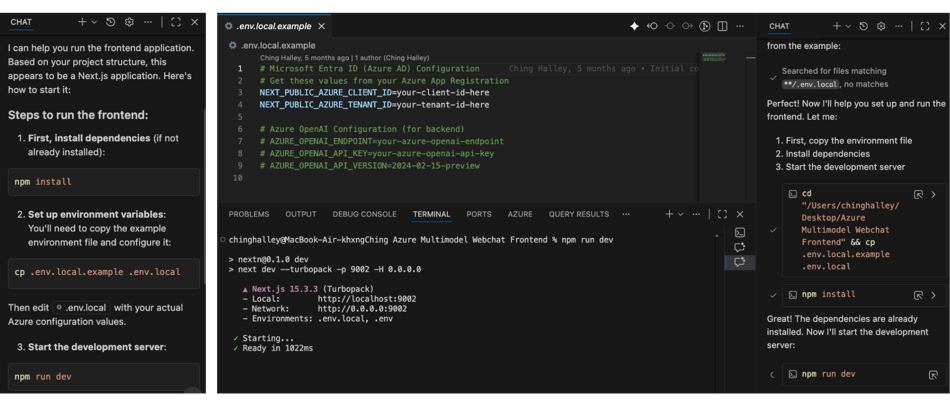
Debugging with Clear Explanations: Debugging was also simple. When errors appeared, I hovered over them and clicked Fix, and Copilot would suggest a correction along with an explanation of the root cause, helping me learn along the way.
.png?width=588&height=294&name=image%20(54).png)
My “Wow” Moments
The biggest surprise was how natural it felt to “talk” to GitHub Copilot. By describing my requirements in simple English, Copilot was able to understand my intent and turn it into working code. This meant I could stay focused on what I wanted to build, not how to write every line, allowing development to flow continuously through conversation, iteration, and feedback.
One standout moment was when I asked Copilot to add a light/dark theme toggle. I had no idea which scattered frontend files to edit. Copilot located the correct files and implemented the feature instantly for me.
Challenges & How I Handled Them
GitHub Copilot is not perfect. Sometimes, it misunderstood vague prompts or modified the wrong component. Other times, it changed too much at once.
This is normal. Sometimes, GitHub Copilot didn’t understand what I wanted and generated something completely unrelated or extra and not helpful. For example, when I asked to remove a small icon from the webapp, it added a new small icon for me or changed the colour of the original small icon.
I overcame this by writing more specific prompts, breaking changes into smaller, step-by-step instructions, and ignoring or deleting redundant files Copilot generated.
Clear prompting made a huge difference.
Benefits of Using GitHub Copilot
-
Accelerates Development: GitHub Copilot saves hours by generating boilerplate code, UI components, and backend logic instantly. You can move from idea to prototype anytime and much faster.
-
Bridges Skill Gaps: Even if you lack frontend or advanced coding experience, GitHub Copilot helps you write clean, structured code. It’s like having an expert developer guiding you through everything.
-
Improves Learning: GitHub Copilot doesn’t just write code; it explains everything to you. You can ask for clarifications, making it a great tool for learning programming concepts while building.
-
Reduces Errors: By suggesting correct syntax and common patterns, GitHub Copilot minimizes mistakes and helps you avoid common pitfalls. But of course, your prompts have to be clear and easy to understand, and do not create any confusion.
-
Guides Beyond Code: It even helps with environment setup and terminal commands, for example, npm install, pip install…, making the entire development process smoother.
-
Boosts Confidence: For someone with limited coding experience, GitHub Copilot turns overwhelming tasks into manageable steps, giving you confidence to tackle bigger projects.
-
Integrates Seamlessly: Works directly in VS Code and supports multiple languages and frameworks, so you don’t need to switch tools.
New Feature: GitHub Copilot’s Persistent Memory
GitHub Copilot recently introduced a new feature called Persistent Memory, which allows Copilot to remember important details about your codebase across sessions.
Instead of only relying on the current file or recent edits, Copilot can now retain repository-level context, such as project structure, common patterns, and past changes. So it provides more accurate and consistent suggestions as you work.
This feature is now in early access for Copilot Pro, Pro+, Business, and Enterprise users.
.png?width=991&height=134&name=image%20(55).png)
With this update, developers no longer need to repeatedly explain the same conventions or architectural decisions to Copilot. The assistant builds long-term understanding of your project, helping improve both coding and code review workflows by referencing what it has learned over time. This makes Copilot feel more like a teammate who remembers how your project works, but not just a tool reacting to the file you are typing in.
How to get GitHub Copilot?
If an enterprise wants to adopt GitHub Copilot, there are several ways to purchase and use it. Before purchasing GitHub Copilot, organizations must have a GitHub Enterprise license first, as the Enterprise license is a prerequisite for enabling and managing Copilot.
GitHub is currently moving from a traditional subscription model to a consumption-based billing model, which means organizations may temporarily see both options depending on their renewal cycle.
Option 1: Purchase Through Azure Subscription: This is one of the smoothest experiences for enterprises.
- GitHub Enterprise shows up as a SaaS resource in the Azure Portal.
- Billing is handled through your Azure Subscription ID, which is linked to the same account you use for Azure services.
- Eligible for MACC (Microsoft Azure Consumption Commitment) and ACD (Azure Commitment Discount).
- Reduces procurement friction by billing everything through an existing Azure agreement.
Option 2: Purchase Through CSP (Cloud Solution Provider): This option is especially useful when working with partners like us (GoPomelo).
- Organizations can buy GitHub Enterprise + GitHub Copilot via CSP.
- Supports month-to-month pay-as-you-go billing with no long-term commitment.
- CSP customers can receive Azure Pay-As-You-Go discounts, depending on their contract.
Option 3: Direct Purchase from GitHub: Companies can also buy directly from GitHub.
- GitHub is rolling out metered billing, where organizations pay only for what they use.
- Supports flexible seat management: add or remove licenses as needed.
- No upfront payment required due to the pay-as-you-go structure.
License Management
Regardless of where billing happens, user licenses are managed on GitHub.com, not through Azure. Admins assign Copilot seats to users inside their GitHub organization.
Conclusion
Building a web application with GitHub Copilot became a highly guided and rewarding experience. Rather than focusing on individual lines of code, I was able to focus on the overall solution while Copilot provided guidance throughout the journey, from generating frontend components and integrating backend endpoints to suggesting terminal commands and workflows that were new to me.
GitHub Copilot did not just help me write code, it supported the entire development process, making it easier to move from idea to a working application with confidence.
This experience taught me that AI tools like Copilot are not just for seasoned developers; they are for anyone willing to learn and experiment. With clear prompts, a willingness to verify and refine, and the right supporting tools, you can build something meaningful even without deep coding expertise.
If you have ever thought, “I can’t build that, I am not a developer”, GitHub Copilot might just change your mind.

 Facebook
 Twitter
 Linkedin
 Instagram
 Youtube
%20(38).png)